Showing posts with label kindle touch. Show all posts

Monday, December 5, 2011

Kindle Tips: for Kindle Touch and Kindle Fire


SOME TIPS PICKED UP FROM FORUMS, COMMENTERS HERE, AND SOME EXPERIMENTING

Re the Kindle Touch:
Be sure to see the first article on what you can do with some of the features on this unit, with basic tips on the changes and certain unexpected aspects encountered when using the Kindle Touch.

Encountering a screen with nothing but book text and no button icons
One thing for new users to be aware of -- you'll often be greeted with a screen of book text only, and with no clue about what to do.  I've seen that this has confused some reviewers who didn't spend enough time with the user's guide.  But it IS anti-intuitive to have no small icon anywhere to let people click to get to even a basic item like a menu.   I really like the Kindle Touch, but this has to be noted.

  Anyway, we're often finding ourselves with a page of just the text of a book (no headers or footers as with physical books) and no clues there as to what to do to get to something besides the Next and Previous page (by tapping on the left or right sides of the screen).  Note that the right 'side' or 'edge' is extended to near the center of the KTouch, probably so that a person holding the Kindle with the left hand will be able to reach the right 'edge' that way.

  When wondering "What do I do now?" (which happens to me still), here's the
  #1 action when you're reading a Kindle book on this ultra light unit.

  If you're not on the Home screen but are reading a book:
  Lightly press the top center part of the screen or the area to the left of center, and many options will come up, including the MENU button that will appear near the top right.

    If, instead you tap the middle area of the page, that will usually be interpreted by the Kindle Touch as a request for the Next Page because of the extended 'right side' that I mentioned above.

  The two most important buttons (for me)
The two most important buttons besides the dedicated, physical HOME button that looks like an air conditioning unit at the bottom of the screen are the ones seen after lightly pressing the top center of a book-text-only screen:

  . MENU -- This offers additional, important options that you don't see in the screen header and footer options that display after you press Menu

  . BACK ARROW ICON at the top left.
That makes sure you can get back to your last action before you jumped to the current page. That *doesn't* mean the last page you were on.  It means the last thing you jumped from (as in a link).
  In the case of a book I'm reading, it took me back to the Home screen, as it was the link action that took me to the book.

  NOTE: In the Kindle Store, the Back (arrow) indicator can get you back to the page of search results when you've searched on a book and have finished reading about one of them.


Summing up the basics
Main actions to remember:
  Home -- Top Center or Top Left Tap/Press -- Menu -- Back Arrow

  With those you'll have enough to 'safely' navigate around the Kindle Touch without getting the "What?!" experience (which I still get - because I'm exploring a new smart Android phone, the Kindle Fire, the Kindle Touch, and a larger tablet, all with somewhat different methods of navigation because the makers want theirs to be a unique experience.

  The possible upside?  Studies have shown that making ourselves learn new things, new methods, puzzling out odd situations -- any of that will help to protect us from dementia later on.  It's the equivalent of physical exercise, and the mind itself is physical.

It also helps when the makers remember it's better to avoid confusing the customer too much and to come up with consistent designs, where possible, in the interface.


OTHER TIPS
Making the small text on WEB pages and in PDFs readable, for the most part

  PDFs
  (The WEB portion of this section applies to the Kindle Fire also.

  Blog commenter Kristen B reminded us of something very important when trying to read two-column PDFs on a small 6" screen, which would have even smaller text.

There's an Android feature that allows for RE-FLOWING text when you enlarge or reduce the fonts, so that it adapts to the width of the space it's in.

  This works in different ways depending on the coding of the webpage, and I saw a video the other day in which a Samsung Galaxy S2 phone did re-wrap the text in a newspaper column, but the iPhone didn't, in that case.
  That ability to adjust the font and text-layout makes all the difference when trying to read tiny text on the web or in PDFs.  We've seen this as an everyday-thing when increasing or decreasing fonts in e-books.

  Kristen pointed out that when playing with a store demo of the Kindle Touch displaying a preloaded 2-column PDF file:
' I was able to "double tap" on 1 column of a 2-column PDF file (preloaded on the KT), and it zoomed to exactly fill the screen with that text.

  Then I could use the swipe or tap methods to advance through the document (properly... top left to bottom left, then top right, bottom right, next page) without any major hangups, though it did have trouble continuing to scroll past a table/figure in the document, but with just text it did great. '

  The earlier Kindles require doing a next-page, via the page buttons, to see the rest of one column and then page backward to see the top of the 2nd column, so this particular mode of handling two columns is considerably better.

  Also, in a PDF, you can also pinch-zoom to exactly where you want it, but as I've said before, it's a choppy, harder- to control function, and the double-tap method optimizes it for the longest line length. Also, some PDF makers create big margins and the Kindle software observes those, respecting the original layout too much.  I wish they'd handle that as they did the old, beloved Landscape mode on the Kindle2 and 3, trimming unnecessary large margins.  But, for now, there's no landscape mode with the Kindle Touch.  There IS Landscape mode for the Kindle Fire, which makes it much more readable.

  Apparently landscape mode wasn't made available because of the segmenting of areas that is done for the portrait mode, but a customer service rep told one Kindle owner that they were working on it.

  Web Page Text
Applying the method above to webpages with the usual tiny text on a 7" tablet

    Web forums usually have a column on the left identifying each message writer and a column for the post itself.

  Usually Android web browsers will auto-fit the width of the screen (they tend to default to that setting, which I like, so that I first see the original layout, but I can't read the text that way.

  Double tapping the screen can improve it, but the text may still be too small because the adjusting includes the left column that's of less interest usually.

    Important Web-Browser Setting: "Auto-fit pages"
    This web-settings box, if checked, formats web pages to fit the screen

    So, that box has to be checked for this to work.

Here's what to do:
1. Move the page with a finger or a stylus (the latter can be really helpful when typing) so that the message body is filling the screen -- even better, until it's expanded beyond the screen edges, too large for the screen area.

2. Double-tap the screen.
The software then keeps the font that chosen size but REFLOWS the text so that the message wraps and you can read it all in that larger font.  It's a great feature.

Blog commenter Tom Semple adds several other good tips also. Some of his finds and suggestions:
Changes:
1. "In addition to TTS ability for PDF, they have quietly added support for 'Table of Contents' (PDF bookmarks), and also PDF links! This makes PDF more navigable. Hopefully landscape will show up in an update."

2. In text to speech mode, the process pops up a dialog box when the user taps anywhere on the screen.

    The popup has options for male/female voices and 3 speed options as before, but you can see them while the text-to-speech is running..

3. A favorite of mine that Tom discovered does work in Kindle Touch after all.   On previous Kindles, when books are sorted by title on the Home screen, you can use the bottom search bar to type one alpha character (only), then click down on the 5-way controller button to jump to the first title that starts with that letter.  (If you forget and type more than one letter, the Kindle starts a search of the entire Kindle for that and it takes forever.)

  That method doesn't work with the KTouch.  Tom found that, on the KTouch, you can tap the "Page x of y" indicator at the top right to bring up a dialog box that lets you enter up to two alpha characters, to jump to the first title starting with those letters.

  It also lets you enter a Home listing page number so you can access it directly.
  For one thing, when the Home screen is sorted by "Most Recent Order" the 'Periodicals: Back Issues" folder created by Amazon for our subscriptions is on the last page, and you can jump to that page by putting the last page number in this dialog box.  There's another method to access the folder, and I'll add that at the end of this post.

  The User's Guide mentions that you can put in diacritics by holding a letter down and choosing one, which helps when typing in west european languages (where Amazon is opening up new stores).

  Shortcut for Screenshots: "Hold down the Home button and single-tap on the screen, continue holding Home for a second or two.  The screenshot is placed in the 'root' or top directiory of the Kindle."

  Screen Refresh (for the mild ghosting that happens when there is no refreshing done for the first 5 of 6 pages in order to load the pages more quickly and without a black flash on each page as happens with e-Ink).  Also, the very densely dark virtual keyboard leaves a bit of ghosting for the next page, though many won't notice it.
    To eliminate it, tap on the top center area or the top left of the screen, which brings up the many options (top and bottom) described eons ago at the start of this blog article.
  That will refresh the page.  Tap again to get rid of the option lines.  A double-click seldom works though.

  PDF page numbers - Actual page numbers show up (if they exist) when you press that center top or left top area.

  Some do have embedded page labels, but they may not match the actual page images due to lack of care during the PDF generation process.
FINAL TIPS
Home Screen's Shortcuts
1. Lightly pressing the home screen's header, "My Items," pops up a box to take
you directly to "Periodicals: Back Issues" or "Archived Items" folders.

2. Pressing or tapping the current sorting order allows you to change it without going to the menu.

Chapter Begin/End indicators
Also, in the Comments area we've discussed the Chapter indicators not being displayed anymore.  It's up to publishers to provide these, and not many of them seem to but when they do, it's very useful.

  For the books that have them, we don't see them, and the only way to find out whether the book we're reading has these or not, is to swipe up (as if rolling the bottom of the page up) or swipe down.  If the book has them, then we can go from chapter to chapter that way.

And, finally:
With both these units, but especially the Kindle Fire, a barely perceptible, very light press (more so than a tap) will be more likely to activate touchscreen responses.

Thanks to the blog's contributors to the Comments area for the good info.

Next time I'll include some ideas from Joe Golton and Edward Boyhan.


Kindle Touch 3G   Kindle Touch WiFi   Kindle Basic   (UK: KBasic)   Kindle Fire
Kindle Keybd 3G   (UK: Kindle Keybd 3G)   K3 Special Offers   K3-3G Special Offers   DX

Check often: Temporarily-free recently published ones
  Guide to finding Free Kindle books and Sources.  Top 100 free bestsellers.  Liked-books under $1
UK-Only: recently published free books, bestsellers, or £5 Max ones
    Also, UK customers should see the UK store's Top 100 free bestsellers.

  *Click* to Return to the HOME PAGE.  Or click on the web browser's BACK button

Friday, November 18, 2011

Kindle Touch (3G) - Unexpected aspects and a few changes noted (Updated)


While I had wanted to quick-blog first impressions after 12 hours with the Kindle Fire Wednesday (which I more than enjoyed despite minor reservations), I've been doing the forums and trading information.  There's always so much there that people find and relay.

  BUT -- my Kindle Touch 3G/WiFi arrived today, so I looked into that.

  And now I want to report on that first, due to a couple of unexpected items that impressed me.

   And there are several changes I want to highlight.

The known loss of the Free 3G Web-lookup feature
  Some, including me, have been disappointed that, unlike the 3G/WiFi Kindle 3 ("Kindle Keyboard") model and its much-appreciated free 3G webbing that's so useful when traveling -- locally even, but especially in countries where roaming charges for smartphones are sky-high --  the Touch models don't offer free 3G web lookups internationally as the older 3G Kindles did.  But I can see  now why Amazon decided not to offer it on the new Kindles.  I wouldn't either if I were paying for it.

Web browsing speed  (Web lookups are on WiFi-only, on the new models, except for accessing the  KindleStore and Wikipedia, the latter a really worthwhile feature when reading a book)

  The WiFi web-browsing, via my Comcast host and Netgear router, is actually usually quite fast with the 3G/WiFi SO (Special Offers) model.
  I don't mean just fastER than the often-slow but free Kindle 3 web lookups, which could be slow with WiFi also.   The new Touch model really can be very quick for an e-Ink device.  I was startled by it.

  When accessing web sites with the KTouch, you're often wisely taken to mobile versions of the web pages, but my over-long, over-imaged, site came up in normal desktop format 10x faster than it would before. 

  This is especially good for Kindle-Edition subscribers who are needing to follow a Kindle subscription blog link to information on another site. 

When I went to the simple, text-focused drudgereport.com, it of course came up fairly quickly, but I was surprised to see, when I clicked on a Telegraph (UK) story, that the whole thing came up suddenly -- it must have been pre-fetched by the webkit browser.

  New York Times web page as an example
   Accessing Amazon's bookmark'd NY Times site, in its print-newspaper layout, it comes up pretty fast!, but with the full page seen in portrait mode on a little screen, so it's not readable.  The zoom-box that used to be there to bring up sections so that we can read them is gone.

   Instead, we can pinch-zoom on an area and it brings up a much more readable version of that, and we can then click a link to a story that is readable while showing the whole width of a column or columns as appropriate plus side stories.   If that's not good enough, you can pinch-zoom THAT and it can look really good!  But if that's still not good enough, then choose Menu to select "Article Mode" which puts it in a highly readable layout that's very pleasant to read but which, as said elsewhere here, doesn't offer the links from the article.
   The Article Mode reformats a story into single-report form, usually with a small photo at the top. 

The processor used in the Touch models is a faster one, and the Touch method's advantage for webbing is that it gives direct access to clickable links, so there's no added time involved in moving the older 5-way controller up, down, and sideways to active hyperlinks (and each cursor movement meant a slowing-down refresh of part of the screen).   Much as I appreciate the free 3G web-lookups of the previous model when I'm outside the home, these changes are very nice.  (But it's still my Kindle 3 I'll be carrying with me outside since I can almost never find unprotected WiFi anymore, outside.)


Pressing or tapping on a screen area
  TIP:   The lightest possible keypress to bring up a menu or dialog box will work best -- even when lightly tapping for a page turn or on a link.  That doesn't seem intuitive but I found this works more reliably than using more pressure.  That's true even when doing a long-press that is used to to bring up an option box.  And it's true for the Kindle Fire also.

  On the other hand, the e-Ink keyboard input is more resistant than it is on LCD, which means less errors from a light touch.  My Kindle Fire keyboard, though, is so non-resistant that I can just hover over a key and it registers (dangerous, so I turned off 1-click buying).   That's been true of my 7" NookColor tablet too.

The 3G web browser's "New Window" link problems on previous Kindles
  The one thing that frustrated many of us 3G web users in the past was that Amazon had decided NOT to have the keyboard Kindles open links that used "New Window" processes.

  This has meant that Facebook and Twitter links recommended by people could not be used, although we could see messages to us and reply to them.  The recommended links, however, were lifeless.

  I always felt Amazon did not want to encourage our exploring all those links and staying on Facebook and Twitter through the day, as that could really cost them, with free 3G program (for us) paid by them.

  They had decided at some point to let Kindle Edition Blog-subscribers click through links requiring 'New Window' from a Kindle'd blog -- customers pay for subscriptions and I think they felt it was a service they should give, since blogs tend to have many links in them and can be worthless if people can't use them.

  But that was the only circumstance, that I know of, under which they allowed "New-Window"-links to be clicked through and the user taken to the new site.  Facebook and Twitter remained still-lifes for links.

With the new Kindle Touch, the Facebook and Twitter webpages are now useable for the links people are busily recommending at those popular sites.

Complex website-pages
   However, the Kindle Touch web browser can't handle a ridiculously heavy page like Huffington Post.
  It never loads.   I tried Overdrive (for public libraries), and it now lets me through the 'New Window' problems I used to have but that is a super-slow site for some reason. They should have a mobile version available for it.  It's too slow even for the new Touch Kindle.

NO Landscape mode on this
This mode has been crucial for web pages and for PDFs with the previous Kindles, giving the ability to expand the width and size of content.
  The default for the new Kindle Touch  is to show you the full web page and fit it to the width of the small 6" screen.  So, the words are unreadable that way, but putting the device into Landscape mode on the older models has helped with those.

  The earlier models with keyboards have Zoom boxes that let you zoom into areas to read the type (awkward but doable) and then you can choose 'Article Mode' from the Menu to read the article as very-readable text although that deactivates links in that mode, so  the zoom-in and pinch-zoom versions can be better to use if you want to follow article links.

  For more details on how to handle this, see the paragraph above on accessing a New York Times article and how that's changed from the Kindle 3.  It'll work for this.


Image zoom-ins - on web pages
Kindles 2 and 3 allow zooms to full-page by clicking in the center.  Kindle 1 allows it by moving the sliding silver column cursor to the line and choosing to enlarge the image to full screen.

  On the new Touch Kindles, this is now done, when WEB-browsing,  by pinch-zooms -- 2 fingers are used to expand the material seen or shrink it back.  I hadn't expected this on e-Ink e-readers but it works.

   It's choppy and difficult to control but when it's done for a full webpage  it does expand the material so that you can read sections of it enlarged. 

Image zoom-ins - in normal e-books
For normal e-books, a pinch-zoom actually enlarges the font size!  And any photos.
  This is normally done with the Aa -choice (for 'Aa keys on earlier Kindles) that is now found at the bottom of a book's footer if you press the area at the top line, which brings up options such as the old GoTo, which is now missing from the regular book Menu and I'd wondered where it was.

  So, at the bottom, you can get  Aa (fonts),  Go To,  and  Sync by pressing an area near the top.
  Also at the bottom are the Location #, the Page #,  and the percentage of the book that's still unread.

  At the top line, there's  1) a Back-arrow that corresponds to the old "Back" button,  2) a shopping cart,  3) a search box for searching the book, and  4) the Menu of options.
  There's also a line up there for  1) the activity-indicator (spins),  2) the title of the book that's open,  3) a wireless-activity indicator (including what type of wireless is being used) and  4) the current time.

    I really like that you can enlarge the font size by just doing a pinch-zoom.

PDFs

  I haven't found much in the User's Guide about PDFs, but trying it out I see that these are treated the way books are.  You don't scroll down the page if there's more, you page left and right.

  Pinch Zooms are used to enlarge a page, including both the fonts and images on the page.
I saw this on a PDF I made from taking images and text from the web and saving it in Word Doc to read later, on the Kindle.   But I saved it as a PDF.  So, this is a text-based PDF.

  I wondered where Adjustment of Contrast is now chosen, as the Aa font menu is no longer findable.  The Contrast Adjustment is selectable from pressing the top line area and pressing Menu at the top right.  It's called, simply, 'Contrast.'

  'Turn on Speech'
  That's also found under the top-right Menu.

   Go to...   for PDFs, this is also found under the Menu.

  This is all easier than selecting zoom-box areas or "150%  200%  300%" sizes as was done before.  It's a gradual zoom controlled by the fingers now.

Overall Speed + choosing Kindle books from my other Kindles
I quickly chose, from my Archived Items folder, about 100 titles to use for exploring the new system, and they included a couple of very large encyclopedias to test how the device would handle having to download them from Amazon and index them for keywords.  I then used Menu to "Import Collections"

  With this unit, I was able to tap one item after another, lickety split, without needing to use 'back' button and it kept up with me.   There's no slowness felt and I was able to do things on the unit while it downloaded the many items I chose for the new Kindle

Kindle Model Designations.
Kindle 1's have 1.x.x software versions; Kindle 2's have 2.x.x versions, and Kindle 3's use version 3.x.x.
They were also called first, second, and third generations.

  It seems the Kindle BASIC (NoTouch/NoKeyboard - $79) uses software version 4.x.x and
  Kindle Touch uses software version 5.x.x

  So, we are sort of looking at the 5th generation Kindle with these Touch models.

  Identifying software versions is now done under Menu/Settings/Device Info (which is scarily right next to the Reset to Factory Default option -- so touch-press carefull when in that Menu, even if they have a safety "Are you sure?" which I did not try  :-).

Kindle Touch Special Offers - Or Without Special Offers
It's hard to know how we will react to any kind of ad.  I've resisted them because I don't want to see them near my personal time with books.  I want to be away from the madding ad crowd.

  Nevertheless, I also don't throw my money away and have read that many actually like the Special Offers and the screensleeper  ads were not bothering them.  I have to say that they are designed very well, all have a classy look so far, and have not bothered me, not even in the lowest slot of the Home page. 

  BUT if they ever do, I've found that at the ManageYourKindle pages, there is an option to "Unsubscribe" from Special Offers by paying the $40 difference between the cost of the two models (the choices of With and Without Special Offers).

Anyway, this was a very nice surprise.  I ordered it only because I should report on it :-) and be able to answer questions, etc.  It's light but we knew that.  However, its small size seemed to make my left hand less comfortable with it, almost cramped, and I felt I'd have to get a case for it pronto, as it would be easier to hold that way.

  I got used to it though.  As for the ads/special offers, whoever directs that does a good job.

Going from one chapter to another, if the publisher used that feature
In the past, if the progress bar (which no longer exists that I can find) showed markers indicating new chapter, we could navigate to each one with a press-right on the 5-way button.
Now we can't see markers like this, that I can find (let me know if you find these), but you can swipe up or swipe down to get to next or previous chapters, respectively.  I saw this work in 'Cleopatra' by Stacy Schiff.

Collections
They've finally alphabetized Collections -- we no longer have to do workarounds, although, as of now, unless a future update fixes it, the Kindle 2 and Kindle 3 Collections remain unalphabetized, a decision I'll never understand, so if we're still using earlier models, the workaround has to stay.

Text contrast against screen background
The Kindle 3 is wonderful in this regard, and I had been puzzled to see how greyish the Nook Simple Touch fonts seemed when I visited BN and tried every font face, type and size.

  It was a disappointment for some on the BN forums too but they have just done an update to the Nook Simple Touch that is said to change this so that fonts, text, foreground images are darker when appropriate and the contrast is good now.

  I'd been worried about the screen contrast, after reading a NY Times article that said the Kindle screen programmers had been having some difficulty getting the screen contrast the way they wanted, a few months ago.  But what I see in my Kindle Touch is what I've seen on the Kindle 3, so those getting either company's e-reader will be very happy with that aspect.


Kindle Touch 3G   Kindle Touch WiFi   Kindle Basic   (UK: KBasic)   Kindle Fire
Kindle Keybd 3G   (UK: Kindle Keybd 3G)   K3 Special Offers   K3-3G Special Offers   DX

Check often: Temporarily-free recently published ones
  Guide to finding Free Kindle books and Sources.  Top 100 free bestsellers.  Liked-books under $1
UK-Only: recently published free books, bestsellers, or £5 Max ones
    Also, UK customers should see the UK store's Top 100 free bestsellers.

  *Click* to Return to the HOME PAGE.  Or click on the web browser's BACK button


\

Monday, November 14, 2011

Amazon announcements - Kindle Fire shipping today, Touch models tomorrow

Am doing a round-up of Kindle Fire reviews, and in the meantime, two announcements have come in from Amazon's PR dept, which I tweeted.

1. Amazon has "tens of thousands" of jobs for returning vets
"We value the leadership experience that military veterans have brought to Amazon, and we’re honored that G.I. Jobs has named Amazon the #1 Top Military Friendly Company.  We have a dedicated military program that has helped hundreds of veterans transition into the civilian workforce and build their careers at Amazon, and we’re actively recruiting for even more veterans to join our company.

  - Dave Clark, Vice President, North American Operations "

See amzn.to/jobs-for-military-vets for more information and to apply for a position.


2. As expected by many of us, Amazon announced this morning that they're shipping new Kindle models ahead of shipping dates given earlier.

  They're shipping Kindle Fire today, one day early, and Kindle Touch models are being shipped tomorrow, 6 days early.

  That means that those who asked for 1-day shipments will get these tomorrow and the day after, unless they live in more-remote areas.


Kindle Touch 3G   Kindle Touch WiFi   Kindle Basic   (UK: KBasic)   Kindle Fire
Kindle Keybd 3G   (UK: Kindle Keybd 3G)   K3 Special Offers   K3-3G Special Offers   DX

Check often: Temporarily-free late-listed non-classics or recently published ones
  Guide to finding Free Kindle books and Sources.  Top 100 free bestsellers.  Liked-books under $1
UK-Only: recently published non-classics, bestsellers, or £5 Max ones
    Also, UK customers should see the UK store's Top 100 free bestsellers.

Thursday, October 13, 2011

Kindle Touch models and the X-Ray reference tool - what it does

THE X-RAY FEATURE AT WORK

Video
Laptop Magazine's Kenneth Butler describes the X-Ray feature and shows the video demo Jeff Bezos used to demonstrate how this works.  Those who watched the entire 52 minute presentation will have seen this in very low resolution.  Here's the YouTube video (Link: bit.ly/xraydemo ) which is taken from the audience and is in HD with very good sound.  It fills my 24" monitor with extreme clarity (at least starting at 50 seconds in) if I choose '720p' at bottom right of the YouTube screen, which means I can read the Kindle text easily, sitting way back).

  Fixed a bad link Thursday morning
  There's also another video (Link: bit.ly/xraydemo2 ), which shows the close-up video-demo along with Jeff Bezos at the podium although the contrasts in light can't be picked up well and the sound is so low it's hard to hear.  I liked seeing the full scene though.

Note to Kindle-Edition subscribers re the video links
  Those reading this on a Kindle-Edition subscription can type those two links into the browser when at a computer.  I have to say this because the Kindle blog dept regularly sends me demands to remove video links from the Kindle editions to meet quality requirements, which I can't do without removing them from this webpage blog itself (!), but I think it's better to let Kindle subscribers know how they can see a demo or tutorial if they want.

The added information shown by X-ray
  The X-Ray feature comes with the Kindle Touch models.  When you highlight a word to get more information on it (dictionary definition, or choosing to go to Wikipedia or Google), it won't need to connect you to the Internet to get information external to the book (unless you want it to) -- Amazon will (in late November) include with every book purchase "a small file pre-loaded with relevant Wikipedia content (and other information)."  As you can see in the video, some of that information can be descriptions of characters as seen on Amazon's Shelfari (Link: bit.ly/shelfari-wiki ), and when users request outside information, this additional file is accessed rather than the Internet.

Instances of word or character in sequence with links to pages
  While one of the features (pointed out by Consumer Reports) is that pressing to highlight a word lets you see, sequentially, all mentions of a character or phrase within a book, the Kindle has always done that and is one reason I like it.  Here's an example from Oct. 2009 as to how that works in all models currently.  Consumer Reports did not look at or report on features like this when doing e-reader comparisons in the last two years.  Nor did they mention these were presented by-book, in sequence and printable, on a private, password-protected annotations page given to Kindle customers in our Amazon areas.

X-Ray's new statistical information
  Amazon has mentioned that it can display statistics that include the frequency of appearance of a word or character in a book, or even in a chapter or on one page.  You'll see this in the video.   (I guess one can wonder if a character will show up again or is particularly important in the scheme of things).

What's involved in gathering the added information for the file
  Whatever algorithms Amazon uses to choose which words or phrases get the added information in the side-file, Amazon points out that the process of choosing and including this external information uses "its expertise in language processing and machine learning, access to significant storage and computing resources...and a deep library of book and character information."


Kindle Touch 3G   Kindle Touch WiFi   Kindle Basic   (UK: KBasic)   Kindle Fire
Kindle Keybd 3G   (UK: Kindle Keybd 3G)   K3 Special Offers   K3-3G Special Offers   DX

Check often: Temporarily-free late-listed non-classics or recently published ones
  Guide to finding Free Kindle books and Sources.  Top 100 free bestsellers.  Liked-books under $1
UK-Only: recently published non-classics, bestsellers, or £5 Max ones
    Also, UK customers should see the UK store's Top 100 free bestsellers.

Tuesday, October 4, 2011

Kindle Fire said to be "on fire" at 2000 per hr pre-ordered the first 5 days

Per geek.com's Matthew Humphries: "Kindle Fire pre-orders exceeding 2,000 per hour"

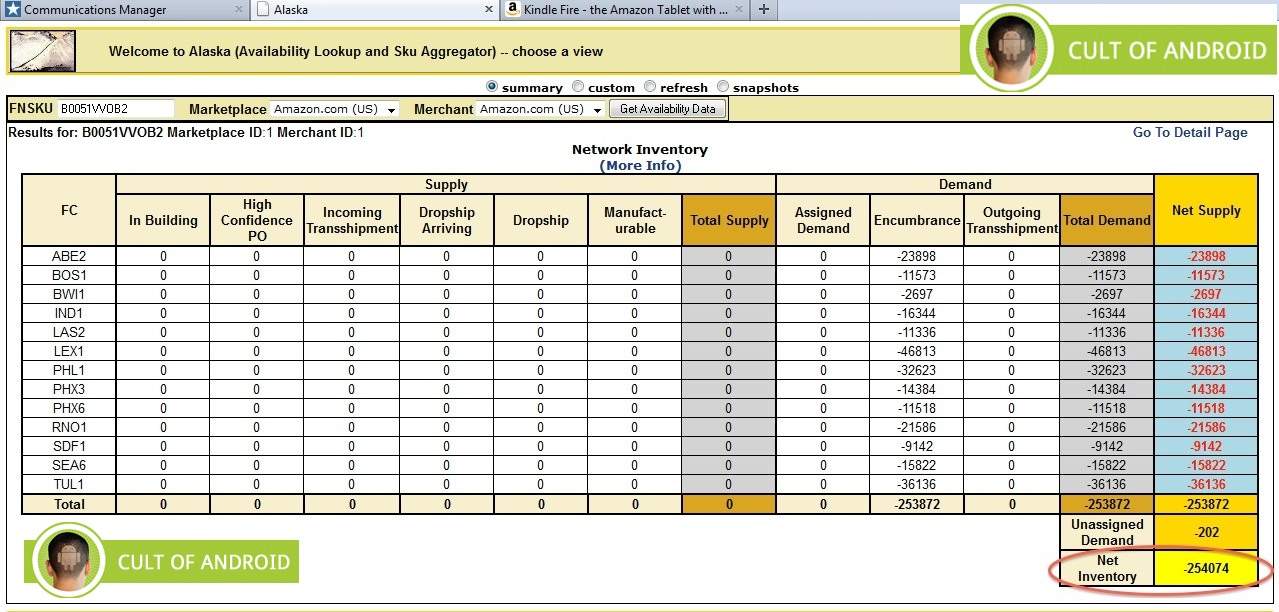
The article explains that the figure is extrapolated from "Amazon’s Availability Lookup and SKU Aggregator (Alaska) system, used internally for tracking stock" -- "in the first 5 days pre-orders were available, 250,000 Kindle Fires were snapped up."

  They're referencing an original story at Cult of Android, which loads on my Firefox only if I grant all kinds of script permissions, while it loads automatically on Internet Explorer.  So, with that caveat for those of you who use NoScript and other browser-script imonitors,  the rest of this is from the Cult of Android story written by John Brownlee yesterday afternoon.

I started this blog article early this morning and then had to leave, not getting back until 5pm so this is "old news" as I type it but I thought I should finish the report of the headlined news anyway, so here it is.

Amazon's internal inventory management system
Brownlee says that a "verified source within [Amazon] has provided exclusive screenshots of Amazon's internal inventory management system Alaska (Availability Lookup and SKU AGgregator)" and you can see the scaled down and larger version at the linked story.

  For the first five days, the pre-orders are said to be showing 50,000 orders per day, and their projections -- which probably should not be based, in my view, on the first 5 days, because heaviest pre-orders would be in the first days of the announcement --  are that "if this level of consumer demand...continues, Amazon will have 2.5 million pre-orders for Kindle Fire before it even officially goes on sale on november 15th.

Biggest tablet launch in history?
  Brownlee adds that if the trend contnues, this would be the "biggest tablet launch in history" for first month sales, and that includes, he says, the launch of the far more expensive iPad, which has, since its launch only 1.5 years ago, established an amazing library of curated applications that currently dwarfs the Google Android Marketplace's more chaotic smaller set of Android apps.  The 7" Kindle Fire would use the currently even smaller Amazon Apps Store, but obviously Amazon and its developer parties are gearing up for quite an expansion there by mid November.

Was it an unapproved leak?
The gist of the article is that someone at Amazon leaked the pre-order numbers but that Jeff Bezos would be "annoyed."
  Since the numbers alone can spark more sales, because people tend to want to go with 'winners' when they're investing money, it's not totally convincing to me that this was a rogue leak, but who knows.

Numbers for the new low-cost EInk readers
THEN, Cult of Android shows what they call "The Amazon internal pre-order numbers for the Kindle Touch and Kindle Touch 3G eInk readers, respectively" and the numbers indicate, Brownlee says, that the tablet is vastly outselling the two lower-cost e-Ink reader models.

  That would be expected, since the "rest of the world" that doesn't want a either a dedicated e-Ink reader or another eInk model after 4 years of availability and past purchases) and which has been waiting for a low-cost but promising tablet (for media needs) from a company they expect will deliver both a good tablet and also content that makes it worth buying that tablet, would heavily lean toward the new, color-filled option with video and audio features that are never a focus of the lower-cost dedicated readers.

Co-existence
 As we've seen, many have bought the iPad AND either a Kindle or a Nook, the latter for books only. 

The WiFi-only Kindle Touch, at $99 with Special Offers (ads subsidizing part of the cost) is being outsold, Brownlee writes, "at the rate of ten to one, racking up only 20,000 pre-orders to date, while the Kindle Touch with 3G and WiFi and with Special Offers is shown with only a few more than 12,000 pre-orders so far.

  They don't show a table for the NON-Special Offers e-Ink models, but Amazon has always said that the Special-Order models outsell the regular ones.

Verified numbers?
  Brownlee closes with the statement that these are "verified order numbers" (and that would only be if he knows and trusts the person at Amazon said to have given him these numbers) and that "a preorder is not the same as a sale," pointing out that consumers could mass-cancel orders (not likely) or that demand could level off (a more realistic possibility but also not a given either as the word spreads, which I've been experiencing).

Reconsidering the 7" tablet market
  Steve Jobs has dismissed the 7" tablet market as negligible, saying that people want a 10" at the minimum (apparently that's what the research of Apple-leaning consumers told him) but the rest of the consumer world may be similar to another group whose wants he had dismissed in Jan. 2008, when he also told The New York Times's John Markoff and David Pogue that the new Kindle device wouldn't do that well, explaining, "The whole conception is flawed at the top because "people don’t read anymore."

  As we've seen, different devices and form factors coexist because people can be more varied than some market research might indicate depending on the structure of the questioning or interpretation of results.


A Starter Tablet?  Or is ultra-portability, lightness, the draw itself?
  It may well turn out that people decide that, despite the attractiveness of ultra-portability and a lower price that can encourage gifting of a 7" tablet within families, they'd rather have a 10" tablet.
Or, not.

  Amazon and others are certainly "ON that," and some columnists point out that most who are drawn to the 10" form factor and the beauty of an iPad have, for the most part, already bought one and will again when a new one is released, but there are those who will look at other products too, and -- as been said over and over again lately -- Amazon's media and network ecosystem is a strong factor in this market.  The 7" KTab could function as a starter for those who want to look at whether or not they want to invest in a higher cost tablet, already having netbooks that can do more than a tablet while still being lightweight and less expensive than a tablet for sitting and consuming media.

Apple
  The upshot of Brownlee's article is that Apple, who would not be particularly threatened by this turn of events, could just decide that maybe it's time they ought to just offer a 7" iPad !

Interesting Comments
In the Comments section to Cult of Android's story, one commenter expressed doubts about the story itself, citing Photoshop as a good 'source' for the figures, and Brownleee responded,
  "We verified our source, so no, these aren't Photoshops."

More entertainingly, maybe, another commenter said,
  "The rooted Nook is the bomb. A rooted kindle is a nuclear weapon"

Possible Cost to Amazon of each Tablet
Within the two articles I cited, Cult of Android being the primary one, there are related articles indicating the innards of the Fire may cost about $150 based on what's known about RIM's Playbook, minus the features (camera, amount of memory, SD slot) that would allow them to price a basic tablet at the lower cost -- with the idea that the Cloud and Amazon Silk browser's network computing power, will compensate for the lower amount of local storage given, via virtually unlimited storage on the Cloud.
  Other estimates of the cost of the Kindle Fire have not included looking at the inside of the tablet or even the Playbook, which was a sort of hardware template for Amazon's new offering.


Kindle Touch 3G   Kindle Touch WiFi   Kindle Basic   (UK: KBasic)   Kindle Fire
Kindle Keybd 3G   (UK: Kindle Keybd 3G)   K3 Special Offers   K3-3G Special Offers   DX

Check often: Temporarily-free late-listed non-classics or recently published ones
  Guide to finding Free Kindle books and Sources.  Top 100 free bestsellers.  Liked-books under $1
UK-Only: recently published non-classics, bestsellers, or £5 Max ones
    Also, UK customers should see the UK store's Top 100 free bestsellers.

Kindle Fire said to be "on fire" at 2000 per hr pre-ordered the first 5 days

Per geek.com's Matthew Humphries: "Kindle Fire pre-orders exceeding 2,000 per hour"

The article explains that the figure is extrapolated from "Amazon’s Availability Lookup and SKU Aggregator (Alaska) system, used internally for tracking stock" -- "in the first 5 days pre-orders were available, 250,000 Kindle Fires were snapped up."

  They're referencing an original story at Cult of Android, which loads on my Firefox only if I grant all kinds of script permissions, while it loads automatically on Internet Explorer.  So, with that caveat for those of you who use NoScript and other browser-script imonitors,  the rest of this is from the Cult of Android story written by John Brownlee yesterday afternoon.

I started this blog article early this morning and then had to leave, not getting back until 5pm so this is "old news" as I type it but I thought I should finish the report of the headlined news anyway, so here it is.

Amazon's internal inventory management system
Brownlee says that a "verified source within [Amazon] has provided exclusive screenshots of Amazon's internal inventory management system Alaska (Availability Lookup and SKU AGgregator)" and you can see the scaled down and larger version at the linked story.

  For the first five days, the pre-orders are said to be showing 50,000 orders per day, and their projections -- which probably should not be based, in my view, on the first 5 days, because heaviest pre-orders would be in the first days of the announcement --  are that "if this level of consumer demand...continues, Amazon will have 2.5 million pre-orders for Kindle Fire before it even officially goes on sale on november 15th.

Biggest tablet launch in history?
  Brownlee adds that if the trend contnues, this would be the "biggest tablet launch in history" for first month sales, and that includes, he says, the launch of the far more expensive iPad, which has, since its launch only 1.5 years ago, established an amazing library of curated applications that currently dwarfs the Google Android Marketplace's more chaotic smaller set of Android apps.  The 7" Kindle Fire would use the currently even smaller Amazon Apps Store, but obviously Amazon and its developer parties are gearing up for quite an expansion there by mid November.

Was it an unapproved leak?
The gist of the article is that someone at Amazon leaked the pre-order numbers but that Jeff Bezos would be "annoyed."
  Since the numbers alone can spark more sales, because people tend to want to go with 'winners' when they're investing money, it's not totally convincing to me that this was a rogue leak, but who knows.

Numbers for the new low-cost EInk readers
THEN, Cult of Android shows what they call "The Amazon internal pre-order numbers for the Kindle Touch and Kindle Touch 3G eInk readers, respectively" and the numbers indicate, Brownlee says, that the tablet is vastly outselling the two lower-cost e-Ink reader models.

  That would be expected, since the "rest of the world" that doesn't want a either a dedicated e-Ink reader or another eInk model after 4 years of availability and past purchases) and which has been waiting for a low-cost but promising tablet (for media needs) from a company they expect will deliver both a good tablet and also content that makes it worth buying that tablet, would heavily lean toward the new, color-filled option with video and audio features that are never a focus of the lower-cost dedicated readers.

Co-existence
 As we've seen, many have bought the iPad AND either a Kindle or a Nook, the latter for books only. 

The WiFi-only Kindle Touch, at $99 with Special Offers (ads subsidizing part of the cost) is being outsold, Brownlee writes, "at the rate of ten to one, racking up only 20,000 pre-orders to date, while the Kindle Touch with 3G and WiFi and with Special Offers is shown with only a few more than 12,000 pre-orders so far.

  They don't show a table for the NON-Special Offers e-Ink models, but Amazon has always said that the Special-Order models outsell the regular ones.

Verified numbers?
  Brownlee closes with the statement that these are "verified order numbers" (and that would only be if he knows and trusts the person at Amazon said to have given him these numbers) and that "a preorder is not the same as a sale," pointing out that consumers could mass-cancel orders (not likely) or that demand could level off (a more realistic possibility but also not a given either as the word spreads, which I've been experiencing).

Reconsidering the 7" tablet market
  Steve Jobs has dismissed the 7" tablet market as negligible, saying that people want a 10" at the minimum (apparently that's what the research of Apple-leaning consumers told him) but the rest of the consumer world may be similar to another group whose wants he had dismissed in Jan. 2008, when he also told The New York Times's John Markoff and David Pogue that the new Kindle device wouldn't do that well, explaining, "The whole conception is flawed at the top because "people don’t read anymore."

  As we've seen, different devices and form factors coexist because people can be more varied than some market research might indicate depending on the structure of the questioning or interpretation of results.


A Starter Tablet?  Or is ultra-portability, lightness, the draw itself?
  It may well turn out that people decide that, despite the attractiveness of ultra-portability and a lower price that can encourage gifting of a 7" tablet within families, they'd rather have a 10" tablet.
Or, not.

  Amazon and others are certainly "ON that," and some columnists point out that most who are drawn to the 10" form factor and the beauty of an iPad have, for the most part, already bought one and will again when a new one is released, but there are those who will look at other products too, and -- as been said over and over again lately -- Amazon's media and network ecosystem is a strong factor in this market.  The 7" KTab could function as a starter for those who want to look at whether or not they want to invest in a higher cost tablet, already having netbooks that can do more than a tablet while still being lightweight and less expensive than a tablet for sitting and consuming media.

Apple
  The upshot of Brownlee's article is that Apple, who would not be particularly threatened by this turn of events, could just decide that maybe it's time they ought to just offer a 7" iPad !

Interesting Comments
In the Comments section to Cult of Android's story, one commenter expressed doubts about the story itself, citing Photoshop as a good 'source' for the figures, and Brownleee responded,
  "We verified our source, so no, these aren't Photoshops."

More entertainingly, maybe, another commenter said,
  "The rooted Nook is the bomb. A rooted kindle is a nuclear weapon"

Possible Cost to Amazon of each Tablet
Within the two articles I cited, Cult of Android being the primary one, there are related articles indicating the innards of the Fire may cost about $150 based on what's known about RIM's Playbook, minus the features (camera, amount of memory, SD slot) that would allow them to price a basic tablet at the lower cost -- with the idea that the Cloud and Amazon Silk browser's network computing power, will compensate for the lower amount of local storage given, via virtually unlimited storage on the Cloud.
  Other estimates of the cost of the Kindle Fire have not included looking at the inside of the tablet or even the Playbook, which was a sort of hardware template for Amazon's new offering.


Kindle Touch 3G   Kindle Touch WiFi   Kindle Basic   (UK: KBasic)   Kindle Fire
Kindle Keybd 3G   (UK: Kindle Keybd 3G)   K3 Special Offers   K3-3G Special Offers   DX

Check often: Temporarily-free late-listed non-classics or recently published ones
  Guide to finding Free Kindle books and Sources.  Top 100 free bestsellers.  Liked-books under $1
UK-Only: recently published non-classics, bestsellers, or £5 Max ones
    Also, UK customers should see the UK store's Top 100 free bestsellers.